Tuesday, May 5, 2020

Best Video Conferencing Services

Want to jump straight to the answer? The best video conferencing service for most people is definitely RingCentral.

I consider a great video conferencing service to be critical for any business. Whether you have remote employees, clients, prospects, or team members across multiple locations, you need video conferencing software that you can depend on.

Tools like Skype or Facetime aren’t robust enough for companies. They lag too often, can’t handle groups well, and are a pain when setting up meetings.

If you’re ready to take your conference calls to the next level with video, you need to read this guide.

I’ve already done all the research and heavy-lifting to help you choose the best video conferencing service for your business. Regardless of your company size, industry, or conferencing needs, there’s definitely an option for you below.

The 8 Best Video Conferencing Services

RingCentral

Free up to 100 participants
Video, screen share, & messaging
VoIP phone service plans
Small to enterprise solutions
Get Started for Free

RingCentral is more than just a video conferencing platform. It’s also a VoIP business phone service.

With RingCentral, you can ditch your traditional business phone plan for a true modern solution. If you have the phone plan, you’ll get video conferencing features as an added bonus.

But you can always purchase RingCentral Meetings as a standalone product. For the purpose of this review, those are the plans that we’ll focus on.

Free — $0 per month

  • Up to 100 participants
  • Unlimited one on one meetings
  • 40-minute limit on group meetings

Essentials — $14.99 per month per user

  • Up to 100 participants
  • Unlimited group meetings
  • 24/7 phone support
  • 1,000 call minutes per license

Advanced — $19.99 per month per user

  • Up to 100 participants
  • 2,500 call minutes
  • Real-time usage dashboard
  • SLA available

The free plan is actually pretty decent if you compare it to others on the list. While you’re capped at 40 minutes per meeting, you can still have up to 100 participants.

At the same time, the paid plans are also limited to just 100 participants, which is low compared to the competition. However, you can add-on larger meeting options to your plan for an upcharge.

RingCentral also has great enterprise solutions. You’ll need to contact their sales team to get a custom quote. But you can save some money by bundling RingCentral Meetings with a VoIP business phone.


GoToMeeting

Free 14-day trial
HD video conferencing
No time limits for meetings
Mobile app and Slack integration
Get Started for Free

GoToMeeting is a top choice for video conferencing and conference room capabilities. The platform makes it easy for you to turn any video conference into a highly collaborative workspace.

This is one of the top video conferencing solutions for accommodating both remote workers and clients alike.

Another top benefit of GoToMeeting is its ability to integrate with the systems your business is currently using. It’s used by sales managers, business owners, and IT teams as well.

GoToMeeting also offers an all-in-one hardware and software kit for those of you who want to transform your physical conference room into a digital one. This hardware is more advanced than the built-in cameras, microphones, and speakers on your current devices.

Some other top features and benefits of using GoToMeeting for video conferencing include:

  • Cloud collaboration
  • Automatic bandwidth adjustments
  • Available on Mac, PC, iOS, and Android
  • Single-click start and join sessions
  • Multi-channel support
  • Integrated scheduling

Unlike the other platforms that we’ve reviewed so far, GoToMeeting has just two plans for you to choose from:

  • Professional — $14 per month
  • Business — $19 per month

The plans are very similar. GoToMeeting offers unlimited meetings and unlimited meeting durations with both options. You’ll also benefit from things like Salesforce integration, Slack meeting launcher, and an admin center with each.

The biggest difference between Professional and Business is that they can host up to 150 and 250 participants, respectively.

In addition to more participants, the Business plan gives you access to transcripts, keyboard and mouse sharing, unlimited cloud storage, and mobile cloud recording.

I think it’s a no-brainer to sign up for the Business option instead of Professional. The added benefits are worth the extra $5 per month.

GoToMeeting does offer enterprise-grade plans for up to 3,000 participants. But those prices aren’t available online. You’ll need to speak to a sales rep for a custom quote.

Save 16% on your GoToMeeting plan with an annual contract.

You can try GoToMeeting for free with up to 250 participants for 14 days.


ClickMeeting
Free 30-day trial
Best for webinars
Up to 1,000 attendees
Enterprise solutions available
Get Started for Free

ClickMeeting is a bit different compared to some of the other video conferencing services that we’ve reviewed. This platform has a specific standout—webinars.

It’s a great option for those of you who want to hold large online events, market your products with video demonstrations, and host online courses or training sessions with live video.

Of course, ClickMeeting does offer traditional video conferencing solutions for team meetings and business collaboration, but that’s all you need then I’d probably lean towards another option on our list.

Pricing for ClickMeeting is complicated. There are two plans, but the prices are based on how many webinar attendees you want to have.

Here’s an overview of those price points per month for each plan:

Live

  • Up to 25 — $30
  • Up to 50 — $45
  • Up to 100 — $79
  • Up to 200 — $149
  • Up to 500 — $179
  • Up to 1,000 — $309

Automated

  • Up to 25 — $45
  • Up to 50 — $55
  • Up to 100 — $95
  • Up to 200 — $179
  • Up to 500 — $229
  • Up to 1,000 — $359

For video conferences with more than 1,000 attendees, contact the ClickMeeting sales team for a custom enterprise solution.

You can try ClickMeeting free for 30 days and run webinars with up to 25 attendees to try it out. Save up to 20% off your with annual billing instead of a month-to-month contract.

The Automated plan is your best option for broadcasting professional video webinars. This plan comes with advanced features like auto-streaming to Facebook or YouTube, automated follow-up emails to attendees, Google Analytics integration, and certificates of attendance.

As you can see, ClickMeeting is definitely pricey compared to the other options on our list, which is why I wouldn’t recommend it for just basic video conferencing use. But the price is worth it if you’re planning to use the webinar features.


Zoho Meetings

Plans as low as $8/month
Screen sharing
Moderator controls
Integrates with Zoho CRM
Get Started for Free

Zoho Meetings is arguably the most straightforward video conferencing solution on the market today. Instead of overwhelming you with different features and pricing options, there is just one plan for video meetings.

Pricing is simple; it’s $10 per month per user, or $8 per month for an annual contract.

The plan comes with everything you need in a video conferencing service. However, it’s limited to just 100 participants per meeting and storage of up to 10 recordings.

This isn’t enterprise-grade software by any stretch of the imagination, but it’s an affordable and suitable choice for lots of small business owners.

Some of ZohoMeetings’ top features include:

  • RSVP scheduling
  • Screen sharing
  • Moderator controls
  • Embed meeting links
  • In-session chat
  • Lock meetings

You’ll also have the ability to switch a presenter, give someone control, and remove users from a video conference.

As expected, Zoho Meetings integrates seamlessly with Zoho CRM. So if you’re already using a Zoho product, this will be a top option for you to consider.

While Zoho Meetings isn’t the most extensive video conferencing service out there, it’s a high-quality solution for small business owners who just need basic features.


Zoom Meetings

Free up to 100 participants
Pro plan starts at $14.99/mo
HD video conferences
Cloud recording features
Get Started for Free

Since launching in 2011, Zoom has quickly become an industry leader in the video conferencing space. The software is trusted by large businesses like Ticketmaster, Uber, Pandora, and GoDaddy, to name a few.

I like Zoom because of its simplicity and versatility. They have a plan for businesses of all shapes and sizes, including a free option.

Zoom has video conferencing capabilities with up to 1,000 participants, and up to 49 videos on the screen simultaneously.

The platform is secure, with role-based user security options, password protection, and waiting rooms. Zoom makes it easy for your team to collaborate with screen sharing, filing sharing, and other interactive features.

Zoom is modern, so naturally, the service can be accessed from a mobile app as well. This is perfect for participants who are on the go and unable to reach a computer for a meeting.

Here’s an overview of the different plans, features, and prices for Zoom Meetings:

Basic — Free

  • Unlimited one on one meetings
  • Up to 100 participants
  • 40 minute limit on group meetings
  • Unlimited number of meetings

Pro — $14.99 per month per host

  • All basic features
  • 24 hour meeting limit
  • User management tools
  • Admin feature controls
  • Reporting tools
  • 1 GB of cloud recording

Business — $19.99 per month per host

  • All Pro features
  • Minimum 10 hosts
  • Up to 300 participants
  • Dedicated phone support
  • Company branding
  • Cloud recording transcripts
  • Admin dashboard

Enterprise — $19.99 per month per host

  • All Business features
  • Minimum 50 hosts
  • Up to 1,000 participants
  • Unlimited cloud storage
  • Dedicated customer support manager
  • Executive business reviews
  • Bundle discounts available for Zoom Rooms and webinars

As you can see, there is a plan for everyone. The free option is an excellent choice for an entrepreneur or freelancer who only needs to video chat once in a while for brief meetings.

Beyond personal use, you’ll need to upgrade to the Pro or Business plans to get the most out of Zoom Meetings. Fortunately, Zoom makes it easy for you to scale to another plan as your company grows.

Just be aware that your plan will impact the level of customer support you receive. To get premium support, you’ll need to upgrade.


Microsoft Teams
Free entry level plan
Premium plan starts at $12.50/mo
Chat, audio, and video capabilities
Best for 1-on-1 meetings
Compare Quotes

Microsoft Teams is business a messaging solution with video capability offered by Microsoft. The platform is designed specifically for internal communication in the workplace.

With chat, audio, and video capabilities for group sizes of 10 or 10,000, Microsoft Teams is the ultimate in-house communication solution.

Slack is a direct competitor of Microsoft Teams. But Microsoft Teams shines with its superior technology and video conferencing features. However, the setup, usage, and onboarding are a bit more complex. So just be aware of that ahead of time.

Microsoft Teams is best when it’s accessed from a desktop device or web app. They do have a mobile application, but overall the web version is easier to navigate.

Here’s a quick overview of the plans and pricing:

  • Microsoft Teams — Free
  • Office 365 Business Premium — $12.50 per user per month
  • Office 365 E3 — $20 per user per month

Both paid plans are only available with an annual contract. The Free plan and entry-level paid plan both have a limit of 300 users, while the Office 365 E3 option is unlimited.

You’ll still have access to quite a bit of features with the free version, including video calls. But you’ll need Office 365 Business Premium to get the most out of this software.

Paid plans have 140+ app integrations, 1 TB of storage, scheduled meetings, meeting recordings, and administrative support.

The biggest downside of Microsoft Teams is that it’s limited. It’s not really a true video conferencing service. Instead, it’s better for one-on-one video meetings or smaller groups.

If you want to host large-scale video conferences and make presentations to clients, you should look elsewhere for a more suitable solution.


Join.me

Voice plans start at $10/month
Video plans start at $20/month
No time limits
Unlimited meetings
Compare Quotes

Millions of people use Join.me for video conferencing. The platform offers solutions for individuals, teams, and businesses. From startups to Fortune 500 companies, Join.me is a popular choice.

The website boasts its best-known customers like like TOMS, Foursquare, OpenTable, and Pinterest.

Join.me is easy. The signup process is as quick as it gets. There’s no need to consult with a sales representative or get a custom quote. Just visit their website, and you can start a call in minutes.

To start a new video conference, simply invite others to “join” your meeting (hence the name). You can invite people via email or with a custom link.

With Join.me, you can customize the video conferencing background, customize the URL, and share your screen with just one click. You can invite people to your meeting even if they aren’t already using the Join.me platform.

Here’s an overview of the plans and pricing options:

Lite — $10 per month per user

  • Up to 5 participants per meeting
  • No video streams*
  • Unlimited meetings
  • No time limits
  • Personal link and custom background

Pro — $20 per month per user

  • Up to 250 participants per meeting
  • Up to 10 video streams
  • Recording capabilities
  • 50 GB of cloud storage
  • Meeting scheduling

Business — $30 per month per user

  • Up to 250 participants per meeting
  • 1 TB of cloud storage
  • Bulk user import
  • Feature permissions
  • Enterprise authentication
  • Salesforce integration

Unfortunately, the Lite plan doesn’t include video conferencing, so you can skip over that one. It’s also worth noting that all plans are offered with an annual contract only. Month-to-month plans are unavailable.

However, you can try Join.me free with a 14-day free trial. Compared to other options on the list, Join.me is a bit limited in terms of meeting participants and the number of video streams per meeting. But it’s a fine option for those of you who won’t need more than ten simultaneous video streams per conference.


Cisco Webex

Free up to 50 participants
Upgrade for as low as $16.95/mo
Unlimited meetings
Cloud storage features
Compare Quotes

Cisco is a brand name that’s synonymous with superior technology. So it should be no surprise that Cisco Webex ranks so highly on our list for video conferencing software.

With Webex, you can host massive virtual events with up to 100,000 participants and run an interactive webinar for 3,000-person audiences.

Cisco Webex is perfect if you need to run on-demand training lessons for large groups as well. This is a great tool for onboarding employees at scale throughout multiple locations.

The Webex mobile app is another standout feature of the platform. Hosting and joining meetings are both simple and accessible from anywhere.

Cisco Webex is built for teams. Arguably the best part about this video conferencing software is the cloud collaboration features. It’s easy to share files and screens with other meeting participants to stay organized and make the conference more interactive.

Cisco offers four different plans for you to choose from, including a basic free option.

Free — $0 per month

  • Up to 50 participants
  • 40 minute limit on meetings
  • Unlimited meetings
  • 1 GB of cloud storage

Starter — $16.95 per month per host

  • Up to 50 participants
  • Unlimited meeting duration
  • 5 GB of cloud storage
  • Recording transcriptions
  • User management
  • Application and file sharing

Plus — $22.95 per month per host

  • Up to 100 participants
  • Assign alternate hosts
  • Allow others to schedule meetings for the host
  • Customizable Webex URL
  • Admin portal
  • 24/7 customer support

Business — $32.95 per month per host

  • Up to 200 participants
  • 10 GB of cloud storage
  • Branding and custom options
  • Single sign-on
  • Active directory sync
  • Minimum five licenses per month

At first glance, the Cisco Webex prices appear to be higher than Zoom Meetings. However, you can save 20% per month with an annual contract.

It’s also worth noting that the Webex Plus plan doesn’t have any host minimums, and the business plan has just a five license minimum. Zoom has a 10 and 50 host minimum for their plans at similar price points.

So Cisco Webex will be a better option if you want those business or enterprise-level features for a smaller team.


How to Find the Best Video Conferencing Services

Compare Quotes From The Best Video Conferencing Services

Get matched up with a video conferencing service that fits your specific needs.

Compare Quotes


Now that you’ve had a chance to review the top solutions on the market, how can you find the best option for your unique situation? This is the methodology that I used to come up with this guide.

I’ve identified each feature set that matters the most and why you need to take it into consideration when you’re evaluating prospective platforms.

Conference Size

Every video conferencing plan has some limit on the number of participants who can join a meeting. This can be as 25 or as high as 100,000.

Make sure you choose a service and plan that can accommodate the number of people you need for your video conferences. You don’t want to overpay for a plan that has participant limits that you’ll never reach. But more importantly, you don’t want to be in a situation where your participant list is too large for your platform and plan.

Video Streams

You might be able to have a large number of participants in a conference, but that doesn’t necessarily mean that every user will be able to broadcast a video stream.

For example, RingCentral plans have up to 100 participants per meeting, but limit you to just ten simultaneous video streams.

So don’t be swayed by the participant limits alone. Always check to see how many users can actually stream a video at the same time.

Collaboration Tools

Collaboration tools are crucial for groups and teams.

Features like screen sharing, built-in chat, file sharing, and cloud collaboration is very useful for presentations and group projects. It’s also helpful when a video conferencing service integrates with existing tools and platforms that you’re already using to run a business. You can look for features like Salesforce integration or Google Analytics integration.

Price

Obviously, the cost will play a roll in your decision-making process.

For the most part, video conferencing services are billed on a monthly basis per user. Prices typically fall in the $10 to $40 range per month per user for traditional video conferencing. However, you can pay significantly more than that for advanced features like video conference webinars. Solutions like ClickMeeting has plans starting at over $300 per month.

Conclusion

Take your virtual meetings to the next level with video conferencing software.

What’s the best video conference service on the market? The answer depends on who you ask and what you’re looking for. Here’s a quick recap of the platforms reviewed above.

  • RingCentral — Best video conferencing service with VoIP business phone plans.
  • GoToMeeting — Best video conferencing service for small business.
  • ClickMeeting — Best video conferencing software for webinars.
  • Zoom Meetings — Best video conferencing service for scalability.
  • Microsoft Teams — Best video conferencing software for internal communication.
  • Zoho Meetings — Affordable video conferencing service with basic features.
  • Join.me — Annual contract video conferencing plans for small meetings.
  • Cisco Webex — Best video conferencing software for cloud collaboration.

Based on this guide, I’m confident that you can find the best choice for your business. No matter how unique your situation might be, these options can accommodate your needs. If you are still not sure which one is right for you then complete the short form below to compare the best solutions further.

Compare Quotes From The Best Video Conferencing Services

Get matched up with a video conferencing service that fits your specific needs.

Compare Quotes


from Quick Sprout https://ift.tt/363MqlY
via IFTTT

Google’s new Podcasts Manager tool offers deeper data on listener behavior

It’s one step closer to the podcast analytics advertisers have been waiting for.

Please visit Marketing Land for the full article.


from Marketing Land - Internet Marketing News, Strategies & Tips https://ift.tt/35H1aYQ
via IFTTT

How to Create a Website With WordPress

Creating a website used to be a massive project.

And expensive too.

Everything had to be built by hand and businesses needed to work with an online marketing agency that would charge them tens of thousands of dollars to build the site. If you wanted a professional-looking site, that was your only option.

Things have gotten a lot cheaper over the years.

Now it’s possible to get a polished site for less than $100. About $10 to buy the domain, $30–60 for a good template, and $5–10/month to host it. It’ll look so good that people won’t even realize that you built it yourself. It’ll look like some high-flying marketing agency built it for you.

Not only has it gotten cheaper, it’s also gotten a lot easier.

Note that there’s a number of approaches you can take to creating a website. More on that later—let’s dive right in.

A Step-by-step Guide to Creating a Website With WordPress

I’ve broken down the 9 simple steps to create your website from scratch. You’ll easily be able to run through these steps over the next 120 minutes.

Step 1: Pick a name and find a domain for your website

These are not two separate steps, unfortunately.

I really wish I could sit down, pick any name that I want for my business, and be able to create the site that I want around that name. Now that the internet is a couple of decades old, we all have to face the reality that most of the good domains have been taken.

Here’s how a naming session always seems to go for me:

  1. In a moment of inspiration, we think of an amazing name.
  2. We hold on to this name for months, maybe even years.
  3. It’s time to start the business, so we go to purchase the domain.
  4. The domain is taken.
  5. We try a dozen small variations of our original idea, all taken.
  6. No biggie, we thought of one brilliant name, we’ll think of another one.
  7. Backup idea #2 = taken.
  8. Backup idea #3 = taken.
  9. Backup idea #4 = taken.
  10. Despair sets in.
  11. We start considering names that we don’t actually like, hoping that anything is available.
  12. We come up with 2 or 3 options that we don’t like at all.
  13. Then we spend a week trying to come up with a name that’s both available and a name that we can live with.
  14. Finally, we find one.

Websites have also become so embedded in our day-to-day lives that it’s better to change the name of the business to match an available domain than it is to pick a poor quality domain. Through this process, I almost always end up with a completely different name than I originally intended.

This is why I consider the “naming my business” and “buying the domain” steps for creating a business to be the same step. I try to only lock myself into a name once I have the domain.

We put together an in-depth guide on buying domains here.

The good news is that the rest of these steps are a breeze once you have your domain purchased. It’s the first and hardest step to create your website.

Step 2: Register your domain name

Real quick, let’s sort out the difference between a domain registrar and a web host.

A domain registrar is a company that specializes in buying (registering) domains.

A web host, on the other hand, specializes in running servers that host websites.

Every web host will desperately try to get you to also registrar a domain through them. The reason is that it’s a great upsell for them. They’ve spent most of their resources building out a hosting service, then they offer domain registration as a convenience, increase the price a bit, and collect a nice chunk of extra profit from you.

My philosophy is to buy things from businesses that specialize in that exact thing. Prices will be better and so will quality. That’s why I also use a domain registrar for buying domains and a web host for hosting. I never mix up the two.

The best domain registrar is Domain.com. That’s where I have all of my domain names.

We put together a detailed review of domain registrars here.

Step 3: Decide what kind of site you are creating

Most guides on creating a website will push you into using WordPress. It’s the most popular and flexible website builder. And that’s usually a good recommendation.

But there are a few situations where I recommend different options.

Simple Portfolio or “Business Card” Sites

Many businesses need a simple website that tells people a few things:

  • Who the business is for
  • What the business does
  • Sometimes a portfolio that shows off some work
  • Contact info

This kind of site gives the basic info for the business, nothing more. If this is what you need, Squarespace is your best option for creating your website. It’s incredibly simple to use and will give you a professional site at a very low price. It’s perfect for small businesses.

Squarespace will try to convince you that they can handle everything. That’s not true.

They’ve created the simplest and easiest website builder out there. Truly, it’s a joy to use.

However, they completely lack all the advanced features that an online business needs. The ecommerce functionality is extremely limited, and I don’t know any serious online marketer that uses Squarespace for a content site. If your business an online business, Squarespace isn’t a legitimate option. You’ll hit the limits of its features too fast.

If you know that you want an ecommerce store from the beginning, start on Shopify and skip Squarespace. And if you know you want a blog or are planning on doing lots of content, start on WordPress. The majority of this guide is around building a wordpress website.

Squarespace makes the most sense when you just need a clean, professional-looking site that gives some basic info on your business. It’s perfect for small businesses, freelancers, and artists.

Here’s another way to think about it: If you’re building a business that doesn’t live and die on its website, it just needs a website in case anyone looks for it, like a digital business card, then go with Squarespace. But if you’re website is your business, use one of the more tailored platforms.

Ecommerce Sites

If you’re planning on building an ecommerce store for your site, don’t use WordPress. We have an entire post here on when to use WordPress for ecommerce and when not to. The short story: it rarely makes sense to use WordPress for ecommerce.

The best option, by far, is Shopify. There used to be more competition in the ecommerce tool space but Shopify got too far ahead. Now they’re really the only option and they have an incredible reputation. You won’t regret using them for an ecommerce site.

If you’re going this route, we have a 9-step guide on how to create an ecommerce website. We also have a guide on how to start a store that drives real sales. Both of those guides will get you pointed in the right direction.

Blog Sites

If you want to create a blog with a bunch of content, you need to use WordPress. We have a detailed guide on starting blogs here. Most websites are really just blogs. Some of the biggest, and most well known websites on the Internet are blogs.

WordPress powers over 30% of the entire internet. So it’s the only real option for starting a blog these days.

What about Joomla or Drupal? Or Typepad?

WordPress left all those other platforms in the dust about a decade ago. They’re not even legitimate options at this point. Pick WordPress — there isn’t a single situation where you’ll regret it.

When I originally started with this online thing, Drupal sites were still pretty common. I partnered up with an engineer friend of mine and we did a lot of freelance work migrating sites from Drupal to WordPress. Even back then, WordPress was a clear winner.

Now when I come across a site on any of these other tools, it’s kind of exciting. It’s like finding an ancient artifact. “This still exists!? How fascinating!”

Don’t use any of these other tools, stick to WordPress.

Everything Else

If you’re not sure or have another vision for your site outside the categories above, use WordPress. It’s the most flexible platform out there. It will do ecommerce, it’ll do simple portfolios, it’ll do massive content sites, it’ll do Fortune 500 marketing sites, it’ll do it all.

You might have to customize it more than other platforms in some situations but you can make WordPress do whatever you want it to. And just about anyone in online marketing knows their way around WordPress so you’ll be able to find plenty of people to help you when the time comes.

Whether you want to build your site by hand or you have an online marketing agency to do it for you, you should still build on top of WordPress. It’ll shortcut a lot of the programming work and give you the ability to edit basic items on your site without having to edit any code. I’ve managed marketing sites of venture-backed tech startups that employed dozens of engineers — we still had our marketing site built on top of WordPress. It’s the standard choice.

Step 4: Get a host for your website

For the rest of this guide, I’m going to assume that you’ve picked WordPress to create your site. If you want an ecommerce site, skip the rest of this guide and follow our guide on creating an ecommerce site.

WordPress is the tool that you’ll use to build your website. But you also need a host that will store your site and make it available to anyone who visits.

The best place to go for most people is Siteground.

We have an entire guide here that goes through all the best web hosts.

Hosting plans usually start around $5/month.

Step 5: Install WordPress

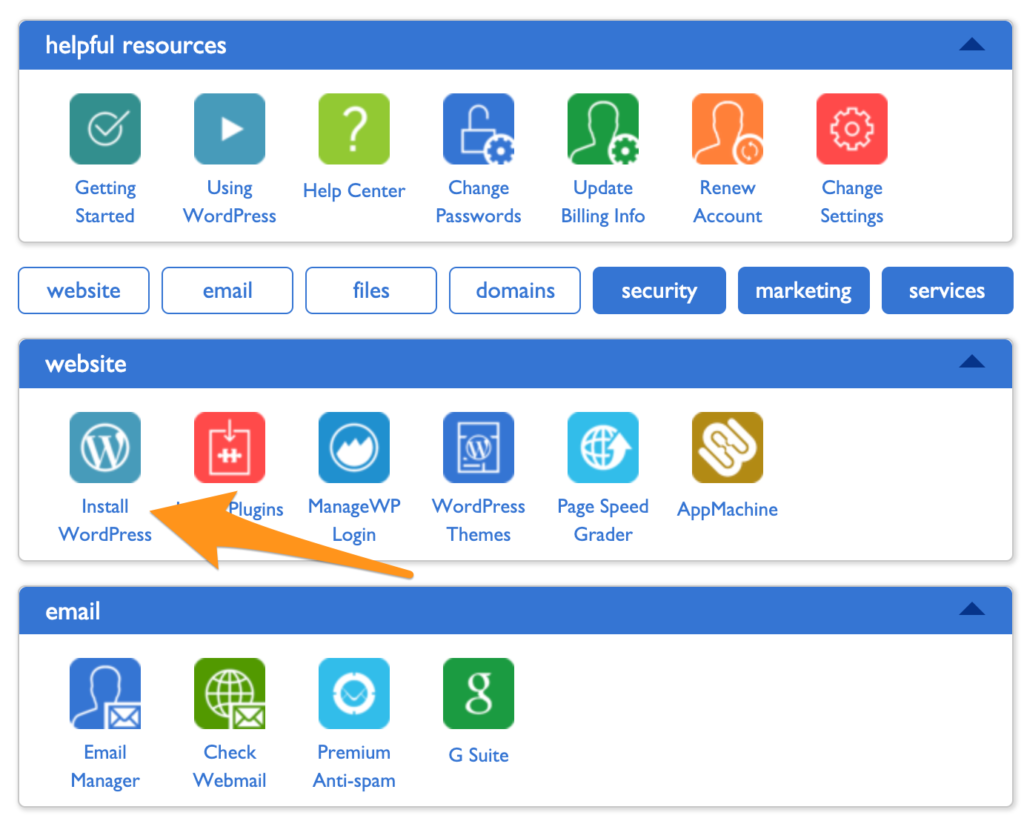
Just about every website host has a 1-click install of WordPress. Siteground, the hosting provider I recommend the most has this feature. It’s usually under a section called Tools, Website, Software, or Content Management Systems (CMS). It’ll look something like this:

Install WordPress

If you have trouble finding it, contact support at your host and they’ll be able to walk you through it.

Step 6: Point your domain to your host

Let’s do a quick recap.

  • You bought your domain using a domain registrar.
  • You signed up for a hosting plan.
  • You installed WordPress on your host.

Now you’re going to connect all that stuff together by pointing your domain to your host. Then when people go to your domain, they’ll end up on your website.

There are a few technical settings you need to apply. This involves configuring a few nameserver settings on your domain registrar for your domain. Your host will give you the correct settings; you’re looking for their nameserver settings.

If you get stuck, contact your host and they’ll give you all the info you need.

Once you have the nameserver info from your host, go into your domain registrar and configure those settings for the domain that you want to point at your site. Once you’re done, it’ll look something like this:


Create a Website Name Servers

Step 7: Install a WordPress theme

Think of WordPress as the guts of your site, it’s all the pumping that makes your site work.

WordPress uses themes to determine how your website looks. This makes it really easy to change how your site looks without having to rebuild your site from scratch. Swap out your old theme for a new one and ta-da! Your design will look completely different.

These days, I purchase all my themes from StudioPress.

Heads up, WP Engine bought StudioPress and now includes all the StudioPress themes in its hosting plans. WP Engine is more expensive but it’s perfect for serious bloggers. It’s a great way to save money on your theme if you are planning on building a large site to begin with. WP Engine is another one of our recommended hosts if you’re looking for the best. The downside is that WP Engine tends to be more expensive than other hosts. It’s probably overkill if you are just starting out, or creating your first website.

Back to themes, are there other options?

You betcha. ThemeForest has a marketplace of WordPress themes. There are literally tens of thousands of themes to pick from. They’re usually in the $30–60 price range. When looking for theme, I rank them by the most popular or the highest rating. Then I pick one I personally like.

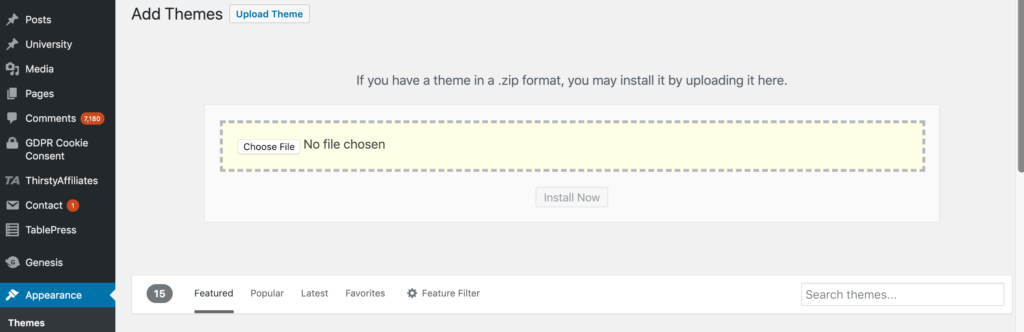
After you’ve purchased a theme, go to the WordPress Theme settings and upload your theme. The Theme settings are under Appearance in the WordPress sidebar menu. You’ll have to click through “Add new” and “Upload Theme” in order to see this option to upload:

Upload WordPress Theme

Go ahead and upload the .zip file you received when you purchased your theme.

After it’s uploaded, you’ll also have to click “activate” on the theme in WordPress to make it go live.

Step 8: Add content to your website

Now the fun part — it’s time to create the individual pages of your site.

You’ll do this within WordPress.

WordPress has two types of content: pages and posts.

Think of posts as blog posts that are published under a “blog” section of a site. If you’re not planning on having a blog, then you can skip posts entirely.

Pages are the more permanent pages on your website. Like your About or Contact Us pages. When you’re first creating your website, you want to get a batch of pages live so your site feels real.

Every website has a few standard pages you should create:

  • Homepage – Your WordPress theme usually has settings for this page.
  • Contact Page – Create a new page and install a WordPress form plugin so you can add a form to the page.
  • About page – Tell your story and why you’ve started your business.
  • Product or services pages – For the main services or products that you’re offering, it’s a good idea to create a dedicated page for each.
  • Blog – If you’re building a blog, make sure all your posts get listed here.

This list will get you started. You can always add more later.

Step 9: Continue evolving your website

At this point, you have a fully functioning site that looks great.

I’m not going to lie, there’s a lot of extra configuration you can do to your site: you can add WordPress plugins that upgrade your site, build out a blog, add an email list, grow traffic, the list is endless.

You don’t have to do any of this extra stuff — it’s all optional. It depends on your priorities and goals.

A website is an ever evolving thing. The way it looks after you first create it, won’t be how it looks a couple months later. At least that is the case if you are actively working and growing your website.

When you’re ready, these guides will walk you through the extra stuff that’s worth considering:

Our General Take On Building a Website

Don’t get confused by all of the different options for creating a website. For a more in-depth look at how we think about this, check out our preliminary guide on how to create a website.

WordPress is King

In most cases, we highly recommend to build your website with WordPress. It’s an open source platform that allows you to run your website with very little technical expertise.

Some of the biggest websites on the Internet are built on WordPress. TechCrunch, The New Yorker, Variety and MTV News, just to name a few.

It’s also the most popular blogging platform, so there are hundreds of thousands of smaller websites that use WordPress.

WordPress is used by 33.4% of all the websites, and has a content management system market share of 60.3%.

Much of our content is centered around WordPress because we use it for all of our websites outside of Ecommerce.

Here’s the guide on how to create your website on WordPress.

Shopify for Ecommerce

For Ecommerce, we like Shopify — which is an Ecommerce website builder that allows you to get an online store up and running quickly.

The reality is that creating and running an online store can be a huge pain. Shopify takes that pain away. That’s probably why they are growing so quickly, and so many great online stores are popping up on the platform.

Here’s the guide on how to create your website on Shopify.

The Dozens of Other Options

If you’re reading this right now, then you most definitely fall into the category of someone that should be using WordPress or Shopify.

In rare cases, it might make sense to create a website using Squarespace or a similar website builder.

In other (very) rare cases, it might make sense to have a custom built website.

More Guides On Creating and Managing a Website

Below, a master list of all our best resources on creating a website.

For general information:

How to Plan Out Your New Website

How to Buy The RIGHT Domain Name – A Detailed Guide

How to Develop Your First Brand Identity on a Budget

The 5 Best Website Builders

The 5 Best Domain Registrars

10 Trending 2019 Website Color Schemes

9 Places To Get Website Images (Paid and Free)

The Best Website Fonts That Go Together in 2019

13 Website Design Best Practices

7 Reasons Why You Do NOT Need to Hire a Website Designer

The 22 Key Elements of a High Quality Website

How Much Copy Should You Write on Your Homepage?

10 Contact Page Techniques That Make People Contact You

How To Create an About Page That Matters

How to Make a Wix Website in 6 Easy Steps

For useful information on optimization as your site gets up and running:

Website Speed

Website Usability

Website Security

Website Mobile Friendliness

5 Easy Steps to Creating a Sitemap For a Website

Should You Switch Your Site to HTTPS? Pros and Cons

The Top 10 Principles That Boost Your Website Loading Time

More about web hosting:

You need a web hosting provider in order to have a website.

We recommend SiteGround for most people. For advanced WordPress users, with high traffic websites, it could make sense to move to WP Engine at some point.

More about The Best Web Hosting Companies here.

Here are some additional guides to help you learn more about web hosting:

The Best Web Hosting for WordPress

The Best Free Web Hosting

The Best Cheap Web Hosting

The Hidden Costs of Website Hosting

More about analytics and reporting:

An analytics tool is important if you want to know what’s happening on your website. It tells you how much traffic you’re getting, where it’s coming from, and what people do on your site. Google Analytics is the standard. That’s what we use for Quick Sprout.

Read more about why Google Analytics is the best.

Installing Google Analytics is easy. Consuming the reports is a bit more complicated.

Here are some guides to help:

The 2 Website Analytics Tools Pros Actually Use in 2019

Setup Google Analytics in 3 Steps – The Beginner’s Guide

10 Vital Customizations to Make in Google Analytics

A Guide to Google Analytics Add-on for Google Sheets

How to Track Your Leads with UTM Parameters

More about building and optimizing with WordPress:

A WordPress website is basically made from what’s called a WordPress Theme and WordPress Plugins. All of the features of your website will come either from the theme or the plugins you install.

To help you get started, we reviewed all of the best WordPress Plugins across the most popular categories.

Here’s an in-depth review for each category:

Best SEO Plugins for WordPress

Best WordPress Gallery Plugin

Best WordPress Backup Plugin

Best Form Plugin WordPress

Best WordPress Cache Plugin

Best WordPress Security Plugin

Best WordPress Calendar Plugin

Best Google Analytics Plugins for WordPress

Best WordPress Popup Plugin

Best WordPress Directory Plugin

Best WordPress Booking Plugin

Best Membership Plugins for WordPress

Best Social Media WordPress Plugin

Useful information for ecommerce websites:

If the primary purpose of your website is to sell products, you’ll need an ecommerce website. We recommend keeping it simple and going with Shopify.

Read our full review on Shopify to see why.

Check out our review of the Best Ecommerce Platforms, to get a comparison to the other options out there.

Get the step-by-step on how to start an online store.

Our guide on how to create an Ecommerce website.

More useful guides on building an Ecommerce website:

WordPress Ecommerce

How to Transfer Your Website to Shopify

Best Ecommerce WordPress Themes

Best Ecommerce Website Builder

Checkout Process Design

Ecommerce Color Schemes

How to Create a Trust Seal On Checkout Page

Tips on starting a blog:

When you really break it down — most websites are blogs, and blogs are websites. They have become one and the same. The most popular blogging platform is WordPress, and that is also the same platform we use for any other website, blog or otherwise.

If you’re thinking about starting a blog specifically, and that is why you’re trying to figure out how to create a website…we have over 40 guides on blogging.

Here are the blogging guides specific to getting started, and building your blog:

How to Start a Blog

Best Blogging Platforms / Blog Sites

Best WordPress Themes for Blogs

Blog Design

11 Things I Wish I Knew Before I Started My First Blog

The Top 12 Tips for Running a Successful Video Blog

10 Lessons Seth Godin Can Teach You About Blogging

100 Lessons Learned from 10 Years of Blogging

Creating Your Own Website: In Summary

Creating your website might seem overwhelming at first. It really comes down to starting with these simple steps:

  1. Is your primary purpose to sell things on your website? If yes, then focus on Shopify, if no, then focus on WordPress.
  2. Use the guides on Quick Sprout to help you through the process. It’s a learning curve for sure. Taking the time to set up everything correctly will help you grow your business and your traffic much faster later on.
  3. Don’t hesitate to reach out to us directly via email with questions. We’ll help however we can.


from Quick Sprout https://ift.tt/31L2TJ0
via IFTTT

The Best Cheap Web Hosting

Want to jump straight to the answer? The best cheap web hosting provider for most people is definitely DreamHost.

Everyone loves to get a great deal. That’s why it’s worth it to shop around to get the best possible rate for web hosting.

However, finding the cheapest web hosting plans isn’t always easy.

It’s common practice in the web hosting industry for providers to advertise really low introductory rates. But in order to get the lowest possible monthly rate, you’ll have to pay up-front and in-full for at least a year.

Basically, the longer your contract terms are and the more you pay upfront, the cheaper your monthly rates will be. It’s also worth noting that your rates could double or even triple when it comes time to renew your plan. The best price will always be for your first contract.

So you can’t just take the advertised rates at face value. What might sound like affordable web hosting initially, could end up costing you much more than you anticipated.

The word “cheap” doesn’t mean the same thing to everyone. A friend of yours could recommend a hosting plan that’s cheap to them, but way out of your price range.

Plus, the cheapest option isn’t always the best option. Some hosts have low rates but provide terrible service. This will end up costing you more money in the long-term.

That’s what inspired me to write this guide.

I’ve taken all of these factors into consideration to identify the most affordable web hosting plans that are worth using. All of the options in this guide are shared hosting plans, which will always be the most cost-effective way to host your website, regardless of the provider you choose.

Whether you’re looking for month-to-month plans, annual options, or the best possible rate, you’ll be able to find the best web hosting provider for your website below.

Finding the Cheapest Long-Term Hosting Plans

These are the best cheap web hosting companies overall:

  • DreamHost — Starting at $4.95 (month-to-month contract)
  • Hostinger — Starting at $7.99 (month-to-month contract)
  • A2 Hosting — Starting at $9.99 (month-to-month contract)
  • HostGator — Starting at $10.95 (month-to-month contract)
  • SiteGround — Starting at $11.95 (month-to-month contract)
  • iPage — Starting at $2.99 (annual contract)
  • Bluehost — Starting at $4.95 (annual contract)
  • InMotion — Starting at $4.99 (annual contract)

But to get the absolute cheapest monthly rates available, you’ll need to lock in a contract for more than one year. This will cost you more money upfront, but save you in the long run.

Then, the above plans look more like this:

  • Hostinger — $0.99 per month (48 months paid in-full)
  • iPage — $1.99 per month (36 months paid in-full)
  • DreamHost — $2.59 per month (48 months paid in-full)
  • HostGator — $2.75 per month (36 months paid in-full)
  • Bluehost — $2.95 per month (36 months paid in-full)
  • A2 Hosting — $2.96 per month (35 months paid in-full)
  • InMotion — $3.99 per month (24 months paid in-full)

In addition to locking in the lowest available rates, you’re also delaying your renewal upcharges.

If you know that your site will be up and running for at least a few years, a long-term contract will offer the most value. Just make sure you sign up for a plan with a money-back guarantee, so you can opt-out at the beginning if you’re unhappy.

The Best Month-to-Month Hosting Prices

For those of you who don’t want long-term contract commitments, you’ll need to find a web hosting provider that offers month-to-month pricing. These prices will be a bit higher than the cheapest advertised rates, but you won’t be locked in for multiple years.

DreamHost

Starts at $4.95/month
$3.95/month if you pay annually
Recommended by WordPress
4.6/5 rating from Trustpilot
Get up to 47% off

If you’re looking for an affordable web hosting option, DreamHost is a top provider to consider. More than 1.5 million websites worldwide are hosted by DreamHost. They have an outstanding reputation, so don’t assume that their low rates are a reflection of their quality.

DreamHost offers month-to-month web hosting plans starting for less than $5 per month.

  • Shared Starter — $4.95 per month
  • Shared Unlimited — $10.95 per month

There are no setup fees and no strings attached. You can cancel whenever you want without committing to more than one month at a time. These are two of the most straightforward low-cost plans in the industry.

Both plans come with a free website builder, WordPress pre-installed, and a free SSL certificate.

Email comes free with the Shared Unlimited plan and starts at $1.67 per month with the Shared Starter plan.

I like DreamHost because their customer service team is 100% in-house. They don’t outsource agents like other web hosting companies. However, the trade-off is that live chat and email support is only available for 16 hours per day.

With that said, DreamHost has an extensive knowledge base of FAQs and guides making it easy for you to find help on your own.

Not only are you able to sign up month-to-month, but you’ll also be refunded if you’re unhappy. DreamHost has an industry-leading 97-day money-back guarantee. Check out my complete Dreamhost review for more details about them.

Hostinger

Starts at $7.99/month
$5.85/month if you pay annually
Free SSL certificate
30-day money back guarantee
Get up to 90% off

Hostinger isn’t the most well-known name in the hosting industry, but they offer affordable web hosting with month-to-month contracts.

Here is an overview of Hostinger’s monthly rates:

  • Single Shared Hosting — $7.99 per month + $4.99 setup fee
  • Premium Shared Hosting — $11.95 per month + $4.99 setup fee
  • Business Shared Hosting — $15.95 per month + $4.99 setup fee

The biggest difference between the three options is the server resources and the number of websites that can be hosted. The available disk space is 10 GB, 20 GB, or 30 GB, depending on the plan you choose.

The Single Shared Hosting plan has 100 GB of bandwidth and it’s good for one website. The Premium and Business plans have unlimited bandwidth and up to 100 sites can be hosted.

All three plans have a 99.9% uptime guarantee, 24/7/365 customer support, and an easy-to-use website builder.

I like Hostinger because their service is reliable and they don’t force you to commit long-term. However, the month-to-month plans do not come with lots of freebies and extras. These are some of the add-ons that you’ll want to consider:

  • Daily backups (free with the Business Shared plan)
  • Cloudflare CDN
  • SEO toolkit
  • Priority support

At a minimum, I’d recommend the daily backups. The Cloudflare CDN is a good value as well.

A2 Hosting

Starts at $9.99/month
$7.99/month if you pay annually
Free domain and SSL certificate
30-day money back guarantee
Get up to 51% off

A2 Hosting is known as one of the fastest web hosting providers in the industry. So the fact that you can get affordable month-to-month pricing from such a reputable provider is a great option.

The monthly rates offered by A2 Hosting are a bit different compared to the providers that we’ve seen so far.

A2 gives a discounted rate off of the first month of the month-to-month contract. The renewal rates for each subsequent month are higher, but still affordable enough to fall in the cheap web hosting category. Let’s take a closer look at the pricing for these plans.

  • Lite — $3.92 for the first month, then $9.99 per month
  • Swift — $4.90 for the first month, then $12.99 per month
  • Turbo — $9.31 for the first month, then $25.99 per month

If you’re in the market for cheap web hosting, then you probably won’t consider the turbo plan, since it renews for $26 per month. Although this plan will give you the fastest speeds.

A2 Hosting offers a free SSL certificate with all three plans. However, you’ll need to pay an extra $4 per month if you want a dedicated IP. Site builders, backups, spam protection, and Cloudflare cost extra as well.

Another reason why I recommend A2 Hosting is because they provide cPanel control panel. This feature will make it much easier for you to manage your hosting experience.

HostGator

Starts at $10.95/month
$8.95/month if you pay annually
Free domain and SSL certificate
45-day money back guarantee
Get up to 61% off

HostGator’s entry-level rates are a bit higher than some of the other month-to-month plans that we’ve reviewed, but they are still one of the best cheap web hosting providers in the industry.

In terms of the value, one of the reasons why I like HostGator so much is because the month-to-month rates are exactly the same as the 3-month contracts and 6-month contracts.

So for those of you who don’t want to commit, even for a few months, there’s no reason to.

  • Hatching Plan — $10.95 per month
  • Baby Plan — $11.95 per month
  • Business Plan — $16.95 per month

At first glance, the $10.95 starting point may seem high, but it’s really not the case.

Are there cheaper options available? Yes. But when you factor in the setup fees and renewal rates of those other providers beyond the first month, $10.95 is still very affordable.

The fact that there is only a $1 difference between the Hatchling and Baby plans is another bonus. In my mind, this pricing structure makes it a no-brainer for you to sign up for the Baby plan.

Even if you only have one domain right now, being able to add more down the road without switching plans is worth the extra $1 per month.

Additional features like SiteLock monitoring, professional email, SEO tools, and daily backups will cost you extra.

HostGator has 24/7/365 support via phone, email, and live chat. They offer instant account activation without any setup costs as well as a 45-day money-back guarantee.

SiteGround

Starts at $11.95/month
$3.95/month if you pay annually
Recommended by WordPress
30 day money back guarantee
Get up to 67% off

SiteGround is another top name in the web hosting industry. They have a great reputation and host websites all over the world.

Their month-to-month pricing is a bit unique. SiteGround offers a low rate for the first month, advertised as a trial. Then the rate increases for each subsequent month.

All trials have a one-time setup fee, which actually makes the trial more expensive than the other months. This is a bit unusual, but it shouldn’t be a reason to turn you away from using SiteGround’s month-to-month plans.

Here’s a deeper breakdown of their pricing:

  • Startup — $3.95 + $14.95 setup fee trial, then $11.95 per month
  • GrowBig — $5.95 + $24.95 setup fee trial, then $19.95 per month
  • GoGeek — $11.95 + $24.95 setup fee trial, then $34.95 per month

Truthfully, the GoGeek plan price point probably falls outside the range of what most people would consider “cheap” for web hosting. But with enough resources to accommodate roughly 100,000 monthly visits, it’s a great option for a larger website that needs affordable web hosting.

For those of you who are starting a new website, you should be fine with the Startup plan.

The Best Annual Hosting Prices

If you’re willing to commit to a web hosting plan for at least one year, you’ll get a cheaper monthly rate if you pay for 12 months upfront. These plans will take more out of your pocket initially but save you money in the long-run.

iPage

$2.99/month paid annually
Free domain and SSL certificate
FREE drag and drop site builder
30-day money back guarantee
Get up to 75% off

iPage has been around for more than 20 years. They are known for website builders and affordable web hosting. More than one million websites use iPage for hosting services.

I recommend iPage because their annual pricing rates are cheap and straightforward.

As we’ve already seen, other hosting providers offer multiple plans at varying price points. The pricing depends on features and resources.

But iPage pricing is based solely on your term length. Then you can customize your plan with additional products.

The base price for an annual web hosting plan is $2.99 per month, which translates to an upfront total of $35.88 for the year.

Here are some of the additional features that you can add to customize your plan:

  • Daily backups — $14.99 per year
  • Website security — $19.95 per year
  • Pro website builder — $131.88 per year
  • SiteLock — $23.88 per year
  • Domain privacy — $9.99 per year
  • WordPress optimization — $36.00 per year
  • G Suite business — $36.00 per year

Most of you won’t need all of these. But you’ll probably want to add-on the domain privacy and added security at a minimum. That would bring your upfront annual total to $65.82.

iPage offers a free SSL certificate and a 30-day money-back guarantee for its annual plans as well.

Overall, iPage has some of the most affordable annual web hosting plans in the industry. Read my full iPage review for more on them.

SiteGround

$3.95/month paid annually
Free SSL, email, CDN, & backups
Recommended by WordPress
30 day money back guarantee
Get up to 67% off

We already reviewed SiteGround’s month-to-month pricing. But their annual rates are appealing enough for me to mention them again here.

In most cases, web hosting providers give you better discounts for longer contract terms. But SiteGround offers the same monthly rate for 12-month, 24-month, and 36-month contracts.

You’ll still have to pay upfront, but you don’t need to commit for three years to get the best rate.

  • Startup — $3.95 per month ($47.40 per year)
  • GrowBig — $5.95 per month ($71.40 per year)
  • GoGeek — $11.95 per month ($143 per year)

So if you know that you want to use SiteGround for at least one year, these annual rates are much more affordable then the month-to-month options that we discussed earlier.

Bluehost

$4.95/month paid annually
Free domain and SSL certificate
Recommended by WordPress
30-day money back guarantee
Get up to 63% off

More than 2 million websites across the globe trust Bluehost for web hosting. Since launching back in 2003, Bluehost has become one of the best and most well-known hosting providers in the industry.

Bluehost plans are pretty unbeatable when you compare the price to the performance and quality of service that you’re getting in return.

Let’s take a closer look at the annual rates for Bluehost shared hosting plans.

  • Basic — $4.95 per month ($59.40 per year)
  • Plus — $7.45 per month ($89.40 per year)
  • Choice Plus — $7.45 per month ($89.40 per year)
  • Pro — $18.95 per month ($227.40 per year)

In terms of affordable web hosting, most of you probably won’t need or want the Pro plan.

But the Basic plan is a great option for a new or small website.

If you have the budget to spend a little bit more, the Plus and Choice Plus plans are offered at the same price for the first year. So I’d recommend Choice Plus, as it comes with extra benefits like site backups and domain privacy.

Just be aware that all of these plans renew at higher rates after the first year. The renewal rate for Choice Plus is $16.99 per month ($203.88 per year) compared to $12.99 per month ($155.88 per year) for the Plus plan.

For an extra $4 per month, I’d still lean toward Choice Plus as the best value.

All plans come with a free SSL certificate and unmetered bandwidth. The basic plan has 50 GB of storage, and the other three have unlimited SSD storage.

Bluehost also offers $100 in advertising credits for Microsoft Advertising as well as $100 in credits for Google Ads. The free advertising can balance out some of your hosting costs. Read my full Bluehost review for more info about them.

InMotion

$4.99/month paid annually
Free domain and SSL certificate
Free and unlimited email
90-day money back guarantee
Get up to 57% off

The web hosting plans offered by InMotion are great for small business owners. So if you’re looking foe cheap small business web hosting, these are the plans that you should consider:

  • Launch — $4.99 per month ($59.88 per year)
  • Power — $6.99 per month ($83.88 per year)
  • Pro —  $13.99 per month ($167.88 per year)

Again, you need to pay upfront to lock in these annual rates.

Most entry-level plans limit you to host just one website. But the Launch plan from InMotion allows you to host two sites.

All plans come with unlimited disk space, unlimited bandwidth, unlimited email, security suite, marketing tools, and a free SSL certificate.

InMotion has a free one-click installer for more than 400 apps as well as one-click data backups and restores.

Another reason why I recommend InMotion is because of their 90-day money-back guarantee. This assurance should make you feel more comfortable about paying for a year in-full when you sign up.

While InMotion does have some add-ons like a dedicated IP and backup management, the plans seem to have more basic features included then some of the other providers out there.  Learn more about them by reading my in depth InMotion hosting review.

Calculating Your Actual Hosting Costs

Web hosting costs aren’t always transparent. You can’t just look at the advertised rate on a website and assume that’s what you’re going to pay.

No matter which hosting provider you use, there are other costs that you need to be aware of. In addition to your base rate, these are the factors that contribute to your actual hosting costs.

Intro pricing and renewal rates

Whether you commit to one month, one year, or four years, your first contract will always be your best offer. But you need to understand what you’re going to be paying when your contract expires.

Let’s look at an example, using iPage, which has the lowest annual rates on our list.

The introductory pricing rate for a 12-month contract, paid in-full, is $2.99 per month. So your base hosting cost is $35.88 for the first year. However, iPage annual plans renew at $9.99 per month, so you’ll be paying a $119.88 base cost for each subsequent year.

Hosting providers are always changing their introductory offers. It’s common to see prices slashed around the holidays, like Black Friday or Cyber Monday. But with that said, I wouldn’t recommend waiting until you see an offer like that to start your website.

Contract length

If you’re short on cash and don’t want to commit, then month-to-month hosting plans might be more appealing to you. But shorter contract terms translate to higher monthly rates.

For example, HostGator’s entry-level pricing starts at $10.95 per month with no long-term commitments. This will cost you $131.40 over the course of the year, which is very affordable.

However, if you lock in that same exact plan for 36 months and pay upfront, the monthly rate drops to $2.75. So you’ll get three years of web hosting for $99 total. That’s less than the cost of one year at the month-to-month rate!

You’ll have to weigh the pros and cons here. The downside of locking in a long-term contract is that you lose the flexibility to change your plan if you’re unhappy or outgrow your resources.

With that said, I’d still lean toward locking in the best long-term deal you can find. You can always continue using your same hosting plan even if you change domain names.

Add-ons and freebies

Most web hosting providers will offer extra features built-in to the base cost of your web hosting plan. Some providers offer more than others. Although the price of a plan typically reflects the number of add-ons you’re getting.

In addition to web hosting, common add-ons, freebies, and extras include:

  • SSL certificate
  • Domain registration
  • Setup costs
  • Security
  • Daily backups
  • cPanel
  • WordPress integration
  • Advertising credits
  • Email
  • Marketing tools
  • SEO tools
  • MySQL databases
  • Domain privacy
  • Website builders

The list goes on and on. It’s important to take all of this into consideration.

One plan may look more appealing at face value, but you’ll have to pay extra for basic features. Whereas another provider may have higher base prices, but deliver more in terms of extras and freebies.

Upgrades

As your website scales, you’ll eventually need to look beyond the cheapest web hosting option. At some point, your traffic and website will exceed the limits of an entry-level shared plan.

The next logical step is to upgrade to VPS hosting or a cloud hosting plan.

While this may not happen for several years, you should take a look to see what types of upgrades are offered by various web hosts. Ideally, you’ll want to choose a provider that will make it easy for you to upgrade to another type of web hosting.

So review those upgraded plans so you can budget and calculate your hosting costs accordingly for the long term.

Conclusion

You don’t need to spend a ton of money on web hosting, especially if you have a new or small website. But finding the best cheap web hosting provider can be difficult because the rates depend on so many different factors.

I do not recommend choosing a web host based solely on price. You also need to factor in the quality of the service that you’re getting.

If your site crashes or goes down, you want to make sure that your hosting provider is available to fix the situation immediately.

The first thing you need to do is decide if you want a month-to-month plan, annual plan, or long term contract. Then you can evaluate the host based on features, resources, and customer service.

So if you’re in the market for cheap web hosting, these are the providers you should consider.

In addition to using this guide to find the best plan for your needs, you can also use it to calculate your actual hosting costs.

Here’s a recap of the most affordable web hosting plans that I would recommend:

  • DreamHost — Starting at $4.95 (month-to-month contract)
  • Hostinger — Starting at $7.99 (month-to-month contract)
  • A2 Hosting — Starting at $9.99 (month-to-month contract)
  • HostGator — Starting at $10.95 (month-to-month contract)
  • SiteGround — Starting at $11.95 (month-to-month contract)
  • iPage — Starting at $2.99 (annual contract)
  • Bluehost — Starting at $4.95 (annual contract)
  • InMotion — Starting at $4.99 (annual contract)


from Quick Sprout https://ift.tt/34driIF
via IFTTT