Starting a blog is a reliable path to supporting yourself and your family. It takes a lot of work and but it is a well-traveled path at this point.
Before you start building your blog, pause a moment.
There are a few critical decisions you’ll need to make at the very beginning. I learned these lessons the hard way and they completely determine how successful you’ll be. Half the work is picking the right pond to fish in.
I’m going to walk you through the 12 steps to start a blog, which are particularly useful for beginners who have never done this before.
Here are links to each section on how to start a blog if you want to jump ahead at any point.
How to Start a Blog
- Pick a category to focus on
- Find a domain name
- Choose a hosting provider
- Point your domain name
- Install WordPress
- Pick a WordPress theme
- Install WordPress plugins
- Install Google Analytics
- Set up your email list
- Get into your blog posting groove
- Build an audience
- Monetize your blog
Now, let’s dive into the step-by-step process of starting a blog.
#1 – Pick a category to focus on
The most important decision to make when starting a blog is which category you’re going to write about.
Why pick a category at all? Why not write about anything that interests you?
When it comes to building an audience, increasing traffic, and monetizing your blog, you’ll get a lot further a lot faster if you stick to a specific category.
Think of it like this: Let’s say you stumble on a blog of mine. You find an amazing post about how to turn email subscribers into fully passive income. You love it and subscribe to my email list. Then I send you an email about how to organize your closet. How would you react? Maybe you’d love it if you also love organization. But most people wouldn’t. They want more content about email lists and making passive income.
Jumping categories can be really jarring for any audience. Google also prefers blogs that are focused on a single topic. That helps your SEO, rankings, and traffic.
Whatever you do, pick a category and stick to it. If you want to try another category, start a new blog.
Here are a few popular categories that always do well:
- Personal finance
- Fitness
- Online business
- Investing
- Productivity
- Real estate
- Careers
- Test prep
- Freelancing
My recommendation is to pick one of the categories above and niche it down one more time. Personal finance for people making over $100,000 per year is a good example. Or fitness for people over 60 is another.
Categories get tough when they’re super consumer-focused and have extremely large audiences. Celebrity blogs are a great example. There are tons of competition in this space but also very limited money compared to other blogging categories. It’s a brutal combo. All the work without any of the payoff. Recipe blogs are another example of a brutal category. World-class competition and very few ways to monetize. Try to avoid categories like these.
One of my favorite category types is B2B. This includes categories like how to do marketing, build products, HR, customer service, manage a team, or improve your sales skills. The volume in these categories is always lower than the popular categories that I listed above. But the quality of traffic is always incredible. Businesses are always willing to spend more than consumers to solve their problems; they have access to a lot more cash. The downside is that you need to have experience and skills in these areas before being able to blog about them. They’re not nearly as easy to break into.
Hobbies can also do okay, but they’re typically more difficult to monetize. That said, I’ve come across entrepreneurs who have built six and even seven-figure businesses in hobby spaces like horse riding or learning the guitar. It’s doable. It’s just more difficult because people aren’t willing to spend as much on their hobbies.
#2 – Find a domain name

Straightforward and easy to use
Great low prices
Easy domain transfers
Get 25% off with coupon code: QUICKSPROUT
Before we jump into how to find and buy the right domain, I should clarify one assumption I’m making in this post: I’m assuming you’re starting your own blog on a blog platform that you’ll own and run — your own website.
That’s not the only way to start a blog, you can use a blog site like Medium, LinkedIn, Instagram, or Facebook. If you want to make money, you need to build your own site, which I’ll cover in this post. If you’re thinking about launching your blog on a blog site, you should stop here, and go check out The Best Blogging Platforms and Blog Sites. That post explains the pros and cons of each platform. This step — choosing where to start your blog — is the “one thing gurus always get wrong about blogging” according to Gary Vaynerchuk. I’m not calling myself a guru, but I can proudly say I’m getting this right.
OK, so everyone still reading is going to set up their own blog site — let’s start with a brief discussion of how website technology works. There are a few things you’ll need to sign up for as you set up your blog, so it’s good to see how they all connect before we get too deep.
- First, there’s the domain. This is the URL of the website. Think of it as the address for your business. You’ll need to buy your domain from a domain registrar. This is the company that you’ll use to buy your domain and hold it for you. They don’t host your site or anything — they just store your domain and point web traffic to your site which will be on your web host. Use Domain.com (they are my favorite) and get 25% off with coupon code “QUICKSPROUT”.
- Third, the web host. This is the company that hosts your site. Your site will be on its servers. Here is my updated list of the best web hosting companies overall and I also dive into specific WordPress focused hosting companies in more detail below. The quick answer though is for most bloggers the best choice is BlueHost
- Fourth, the tool to build your site. Very few sites are built by hand using raw HTML and CSS these days. Almost all of them are built using a tool. The tool handles a lot of heavy lifting and makes building a site substantially easier, especially if you have no idea how to code. This is how you’ll configure your site and publish your blog posts. For blogging, these tools are called content management systems (CMS) and the only real option is WordPress. Once you’ve installed WordPress on your host, you’ll be able to start building your site.
To recap, you’ll buy a domain using a domain registrar, install WordPress on your host, then start building your site. I’ll walk you through how to do each of these things step by step.
Now, how to buy a domain for your blog.
In order to buy a domain, you’ll have to find one first. This domain should be somewhat related to the category you picked and should also be available for purchase.
I highly recommend you keep searching until you find a domain that’s available. While it is possible to buy a domain from someone who already has it, that’s an advanced option and can get expensive fast.
Low-quality domains will usually go for a few thousand dollars. Highly quality domains that are two words can easily go for $10,000 to $50,000. I’ve even been in discussions to purchase domains for over $100,000 and the really hot ones can break seven figures. Not to mention all the hassle that comes from finding the person who owns the domain, negotiating with them, and transferring the domain if you can get an agreement.
Your best bet is to keep going until you find a domain that you like and can purchase directly from a domain registrar for about $10.
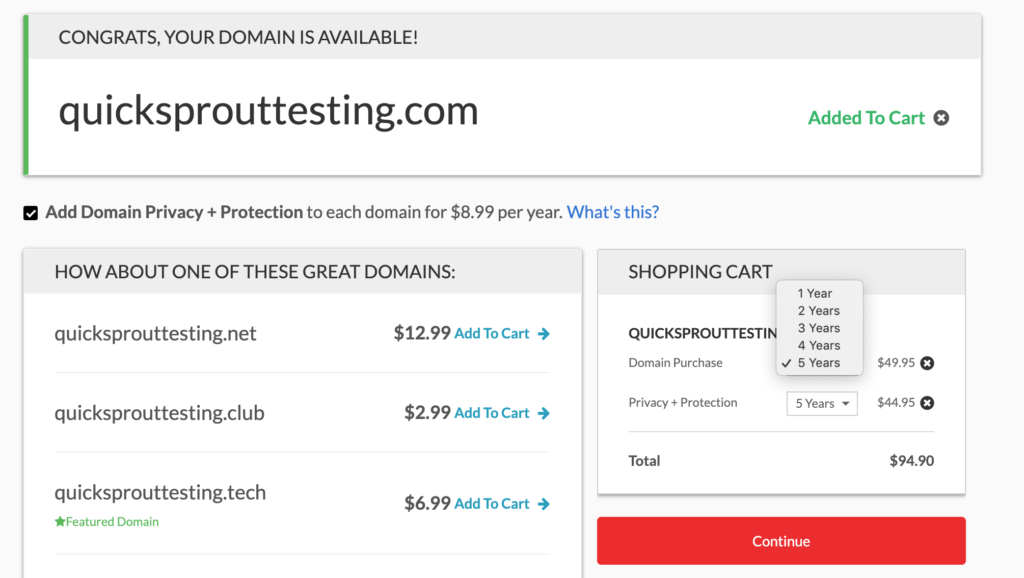
We go into lots of detail on which domain registrar to use here. The short answer: use Domain.com (get 25% off with coupon code QUICKSPROUT). It’s awesome, it’s the best, it’s what I personally use.
Should you use your personal name as your domain?
If this is your first blog and you’re not completely sure what you want to blog about, I recommend that you use your personal name.
The reason is that changing your domain later will mean that you have to start over from scratch. There are a lot of mistakes in blogging that can be corrected later; having the wrong domain isn’t one of them.
Let’s say you pick a domain like fitnessfordoctors.com. Then after six months, you realize you’d rather be doing personal finance blogging for doctors. You’d need to get a new domain and start over from scratch.
Personal domains are much more flexible — it’s just a name after all. So if you jump categories after a few months, it’s not a big deal. Take down any old content that’s not relevant with your new direction, start posting new content, and you’re good to go.
That said, personal domains have two major downsides:
- Scalability – It’s much more difficult to recruit other writers or grow your blog beyond your personal identity later on.
- Sellability – Personal blogs, even if they’re generating serious cash, are much harder to sell. Prospective buyers want a site that isn’t dependent on a single person.
These are pretty advanced problems to have though. So if this is your first blog, the benefits of using your name as the domain greatly outweigh the costs that only show up down the road. If you need domain name ideas check out this post about the best blog name generators for some ideas.
#3 – Choose a hosting provider
Every site needs a web hosting provider. This is the company that stores your site on its servers and makes it available for anyone who visits your site.
We went through all the main hosts for WordPress sites (by far the best tool for blogging) and put together our recommendations here.
While there are a few other choices it really comes down to two options:
Best WordPress Host for Beginners = BlueHost
For your first blog, you want a host that is popular, trusted, easy to use, reliable, and reasonably priced. No need for anything fancy.
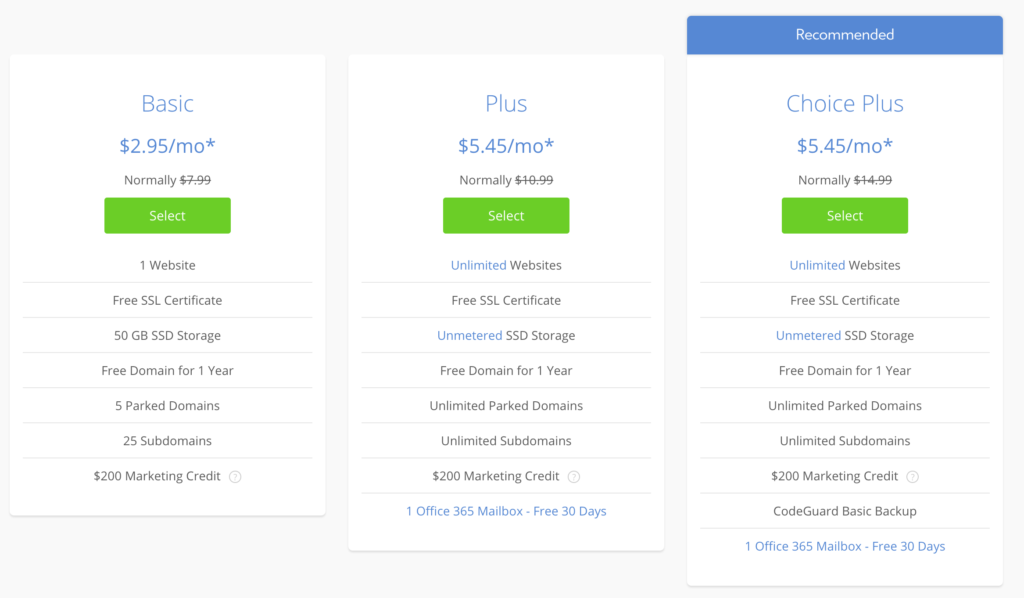
BlueHost fits this need perfectly. The best part is that its plans start at $2.95/month (when using our discount link). That’s a steal considering how many positive reviews it gets.
For the vast majority of folks starting blogs, BlueHost is going to be the best bet for hosting their blog.

Normally $7.99/month
Free domain and SSL certificate
Recommended by WordPress
30-day money back guarantee
Get a 63% discount
Best WordPress Host for Advanced Bloggers = WP Engine
In my last few jobs, I managed blogs with hundreds of thousands or millions of visitors per month. They had thousands of posts on them. We always used WP Engine for sites of that size.
WP Engine comes with a lot of extra hosting features for security and scalability. For sites of that size, you end up having to do a lot more maintenance in order to keep the site healthy. WP Engine handles all that stuff for you. Their support team is also world-class. They do a great job.
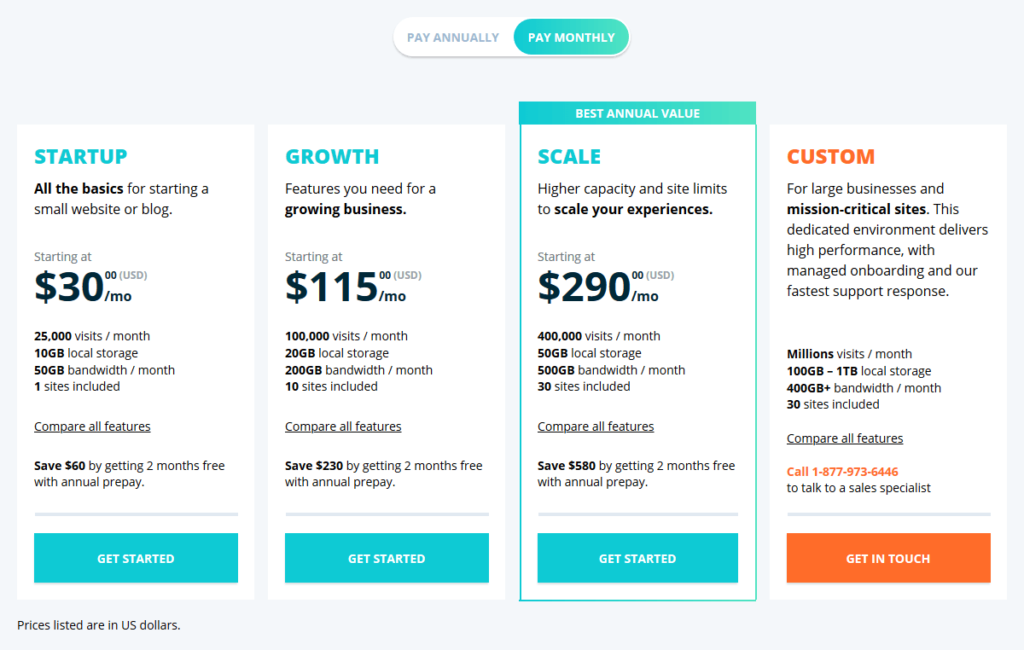
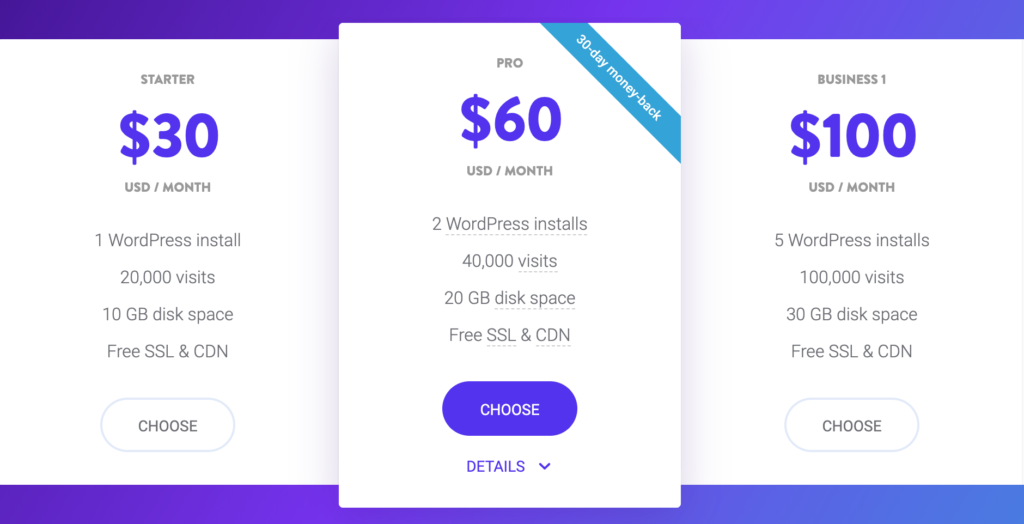
But there’s a major downside: it’s more expensive. The lowest plans start at $30/month. This is 7X the price of other hosts.
Normally $30/month
Month-to-month pricing
Free domain and SSL certificate
30-day money back guarantee
Get 4 months free or 20% off
#4 – Point your domain name to your host
Now you have a domain and a host for your site.
The next step is to point your domain to your host so that people end up at your site when they go to the URL of your domain.
Every host has slightly different settings you’ll need to configure at your domain registrar. They definitely have a support doc on with the details on what to do.
Here are the details for our recommended hosts:
If you have any trouble with this, contact the support team for your host and they’ll walk you through the exact steps.
#5 – Install WordPress
You’ll need a content management system (CMS) to build your site and manage your blog posts.
There’s only one option for this: WordPress.
Seriously, it’s not even a decision. Use WordPress.
Years ago, there were a few competitors to WordPress like Joomla, Typepad, or Blogger.
No one uses those anymore.
This is going to sound kind of bad but whenever I hear of someone using one of those old WordPress competitors, I just laugh. It’s hard to take them seriously.
WordPress powers 30% of ALL websites. That’s how popular it is.
Use WordPress for your blog, end of story.
Because of how popular WordPress is, most web hosts offer a one-click install for WordPress. It’s super easy. Log into your web host, find the install WordPress option, click it, then follow the instructions. This is what you’ll need to do if you signed up for BlueHost.
And if you’ve decided to go with WP Engine, it comes pre-installed since WP Engine is a hosting company for WordPress specifically.
#6 – Pick a WordPress theme for your blog
WordPress is the foundation of your site. There’s an easy way to change how WordPress looks without having to code anything yourself.
WordPress uses “themes,” little packages of code that can be swapped in and out. Whenever you change your theme, your site will also change. The best part is that your blog post content won’t change. This makes it very easy to evolve your site over time without having to rebuild your entire site from scratch.
For now, you’ll need to pick your first WordPress theme.
The number of themes out there makes me dizzy. There are… a lot.
When picking a theme for any of my blogs, I go straight to StudioPress. The themes are a bit more expensive at $130. (Most themes go for $20–50.) In my opinion, the higher price is well worth it. StudioPress was purchased by WP Engine and WP Engine now includes all the StudioPress themes as part of its hosting package. It’s a nice freebie if you are already planning on hosting your site with WP Engine.
If you want a wider selection of WordPress themes at standard prices, Themeforest is the most popular WordPress theme marketplace. You’ll find just about anything you want in its selection.
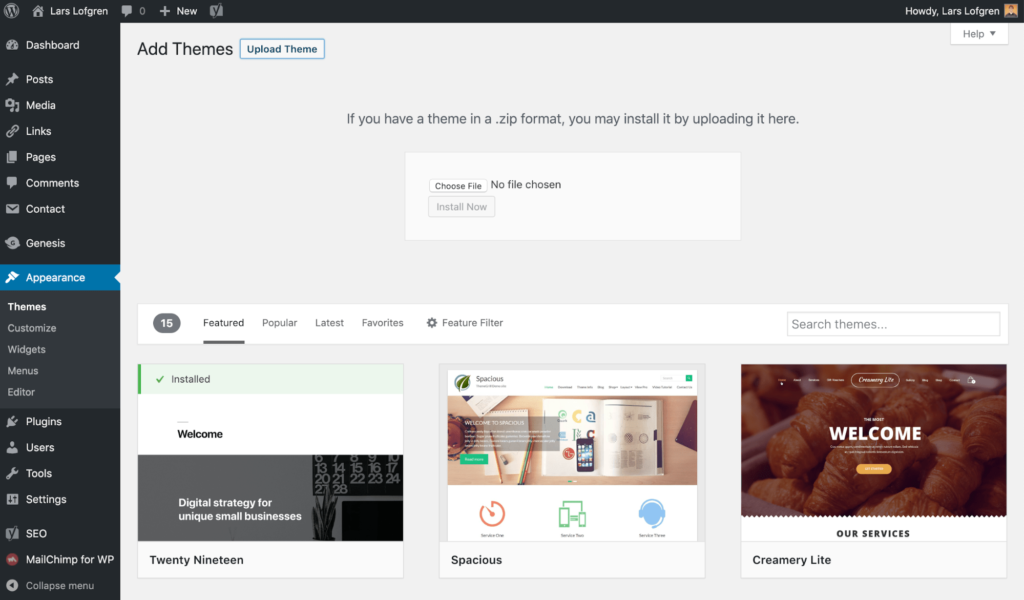
After you purchase your theme, log into your WordPress blog, go to the Theme section which is under Appearance in the WordPress sidebar menu. Then follow the instructions for adding the theme. You’ll have to upload the theme files to WordPress and activate the theme from within WordPress. You can find the upload option by going to Themes > Add New, a button towards the top. Then you’ll see this option to upload:
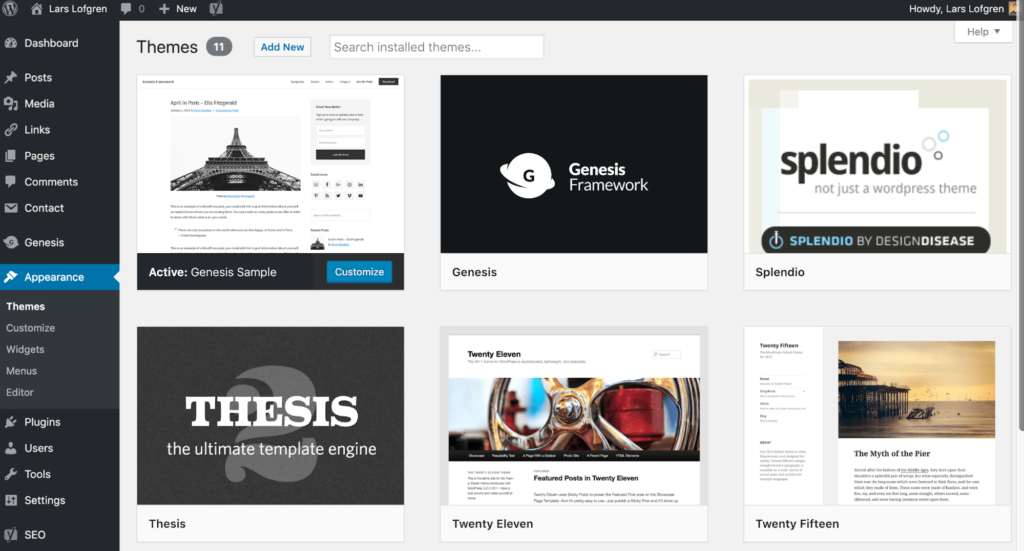
You’ll be able to manage any themes you’ve uploaded to your WordPress blog from your Themes section:
#7 – Install WordPress plugins
One of the best parts about WordPress is that it’s infinitely customizable. Since it’s open-source, you can change it to do whatever you want.
WordPress plugins are little batches of software you can install within WordPress to get extra functionality. This is how you’ll add a bunch of extra features to your site without having to code anything yourself.
Be careful here and try not to go overboard.
Some bloggers will install dozens or even hundreds of plugins on their blog. That can cause a bunch of problems later on. Not only can plugins cause unexpected conflicts with each other, they become a security liability since it’s unlikely that every plugin owner will maintain the plugin over time. They also become a huge headache to manage. When you have that many plugins, you’re never sure which plugin is causing a particular problem.
I like to keep my plugins limited to 5–10 amazing plugins. Here are a few of my favorites:
- Akismet – Required for every blog, it automatically filters a ton of comment spam which is a problem for every blogger. This is one of the few plugins that I happily pay to upgrade.
- Yoast SEO – The most highly recommended SEO plugin, it handles a bunch of SEO tasks automatically for you and also makes on-page SEO tasks a lot easier.
- Contact Form 7 – The most popular contact form out there. Set up a contact page on your site and then use this plugin to create a contact form that will email you any time someone fills out the form. Super easy.
- TinyMCE Advanced – A bunch of improvements to the WordPress editor that makes writing in WordPress a lot easier. These days, I usually skip this one. I write all my posts in Google Docs and then format them in WordPress using its default HTML editor.
- WP Super Cache – A good plugin to speed up your site.
- MailChimp for WordPress – More on this below. It’s the easiest way to connect your WordPress site to a MailChimp account, create an email sign up form, and start collecting email subscribers.
- WordPress Popular Posts – Easiest way to add a list of your most popular posts to your blog sidebar. The list will update automatically.
There is a plugin for just about anything you could want to do with your WordPress site. Use the plugin page within your WordPress blog to search for anything that you need.
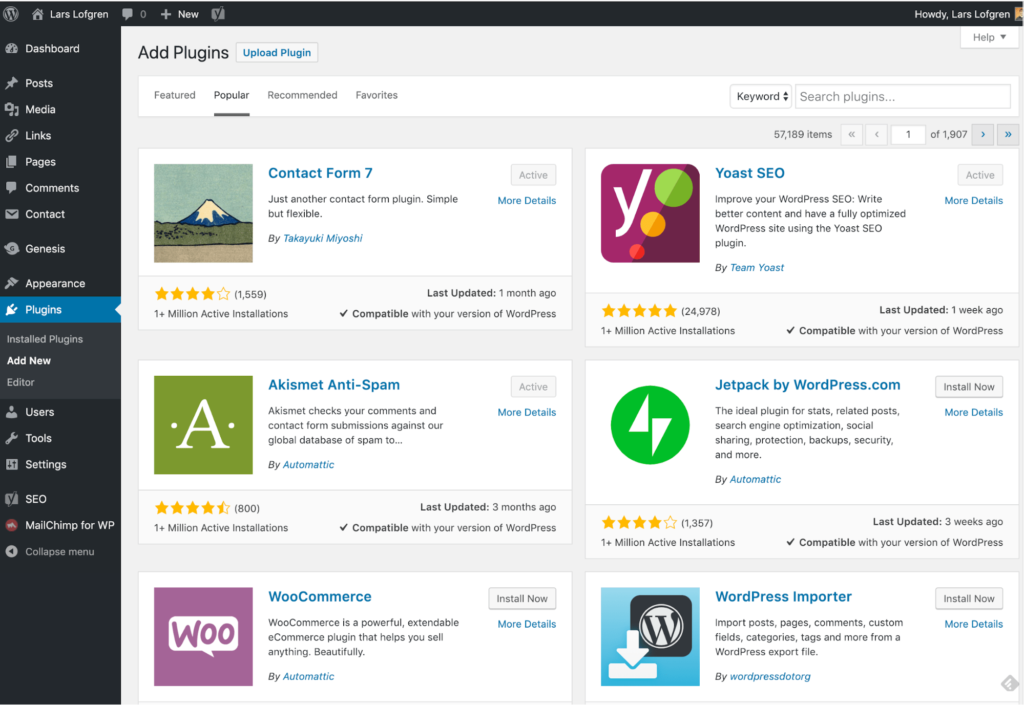
When you’ve found a plugin you want, install and activate it from within WordPress.
#8 – Install Google Analytics
Google Analytics is a free website analytics tool from Google. Even though it’s free, it’s still the best analytics tool out there.
Analytics is just a fancy word for website data.
Yes, analytics can get pretty complicated and overwhelming.
Which is why we’re going to ignore the majority of what’s in Google Analytics for now.
All you need to do is create a Google Analytics account and install it on your blog. There are two reasons for this.
First, Google Analytics stores your data over time. When you’re ready to dive in later, you’ll be thankful that you’ve been collecting data since the beginning.
Second, it’s exhilarating to watch people visit your site in the beginning. I remember the first time Google Analytics recorded a visitor on my first blog. I thought it was a mistake. “Someone visited my site? Really? Why would they do that? Who are they? Did they like it?”
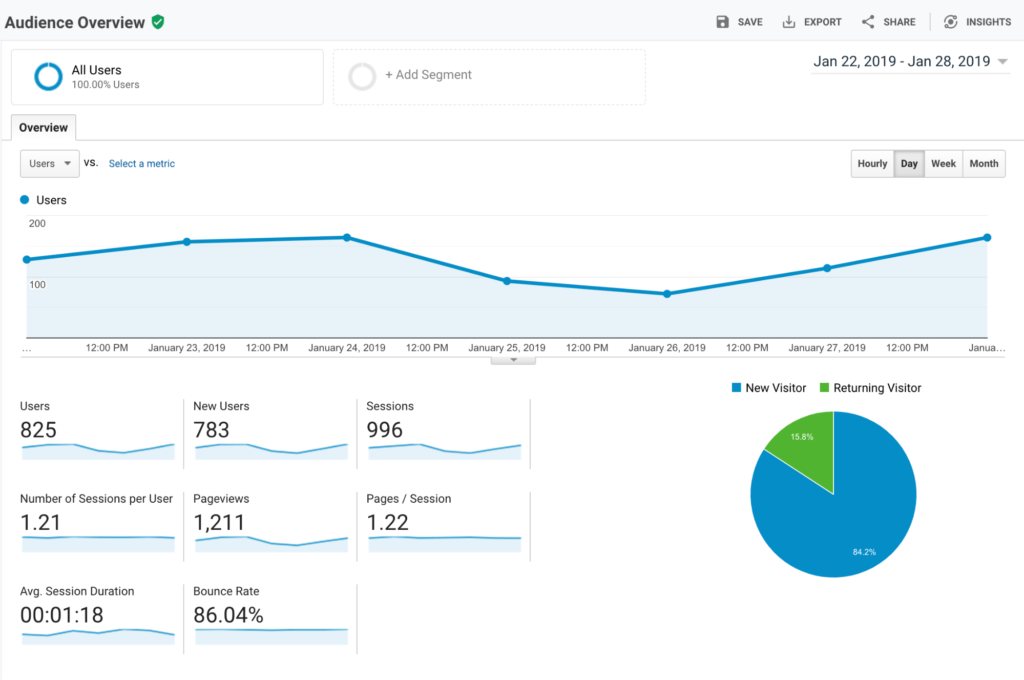
Seeing those first visitors come in will give you a huge motivation boost. Even if you only check Google Analytics to see your total traffic, it’s well worth the time it takes to set up.
It’s also pretty easy to set up.
Go to Google Analytics and set up your account. Once your account is created, you’ll have a unique JavaScript tracking code for your site. When you copy and paste that snippet of code into your site, Google Analytics will start collecting data for you.
#9 – Set up your email list
Sooner or later, you’ll hear a stat like this:
“Email marketing has 22X the ROI of any other marketing channel!”
Technically, this is true.
The response from email will always dominate any other channel that you try pushing a campaign to. But you have to acquire those emails in the first — they’ve already been filtered for the most receptive people. In other words, email by its nature is more responsive, so the comparison ROI stats are kind of dumb. They’re stating the obvious.
It’s kind of like going to a strawberry field, picking the best strawberries in the entire field, putting them in a gift basket, then declaring the gift basket strawberries are 12 times as delicious as normal strawberries. Of course, they’re more delicious — you picked the best ones already!
That’s how email lists work. They’re a gift basket of the best strawberries.
Every marketing engine I’ve built for companies has relied on emails at its core.
Think of your email list as a giant laser ray you can focus on any offer you want. Selling consulting? Pitch your list. Publishing a new blog post? Pitch your list. A podcast just interviewed you? Pitch your list.
Of all the marketing channels that have come and gone over the years, nothing compares to the power of a high-quality email list.
Even if you’re not sure what to send your email subscribers, that’s okay!
Using Constant Contact or other email marketing services, you can start collecting emails on your blog so that the list is ready for you as soon as you need. It takes time to build a decent size list so your future self will be extremely grateful if you set it up now.
Even a super basic opt-in in your blog sidebar is enough to get you started.
Don’t even worry about sending any emails yet unless you want to. The main thing is that you’re collecting email subscribers from the beginning. Email lists can be a gold mine once you have a few thousand subscribers, and the money really rolls in once you have 10,000 subscribers and above.

Drag-and-drop email builder
100+ mobile-friendly templates
Simple automation tools
Get a 60 day free trial
#10 – Get into your blogging groove
Writing blog posts isn’t a sprint, it’s a marathon. More like a multi-day backpacking trip.
The best bloggers settle into a consistent writing pace they can maintain for a few years. That’s right, years.
Here are a few posting frequency rules of thumb:
- At the bare minimum, find a way to post once per week. This needs to be a substantial post, too: 2,000 words at least. I recommend you start here.
- Serious bloggers will post 2–3 times per week.
- Larger sites quickly get to 5–7 posts per week. This requires multiple authors.
- The heavy hitters who push things to the limit will do 25–50 posts per week. No joke, this is for large businesses using content marketing as their primary customer acquisition channel. HubSpot is a classic example of this.
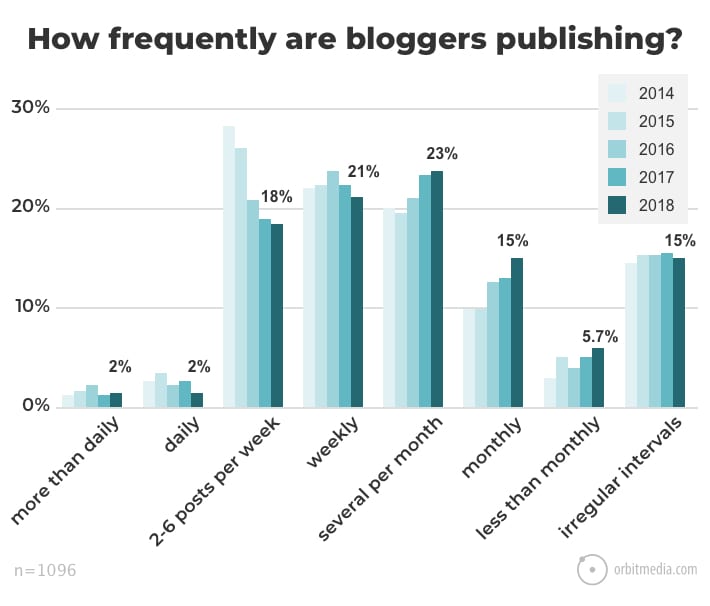
When I look at this chart of blog posting frequency from Orbit Media’s survey of more than 1,000 bloggers, I’m not surprised that 21% of bloggers are infrequent or less than monthly. (Let’s get real, less than monthly is not regular enough for most readers to know when you’ll be posting a new blog.) If you post weekly, you’re already posting more regularly than 57% of other blogs — this gives you a huge advantage.
I know writing isn’t easy. After writing blog posts full time for three months, I always want to throw my MacBook out the window. It’s a grind for all of us. This is why I recommend one post per week. That still gives you the majority of the week to focus on other aspects of your site while also giving you a break from writing blog posts all the time.
A really great post should take you two days to complete. The first day is for research and outlining, along with as much writing as you can complete. The second day is for finishing the writing, proofreading, and publishing the post in WordPress.
Also, push quality as hard as you can. The key to building a site and traffic over time is to write posts that are more valuable than what other people have already published in your category.
#11 – Build an audience
There’s a super famous article in blogging circles: 1,000 True Fans.
Basically, getting 1,000 true fans means you can fully support yourself. You can quit your job, work from wherever you like, and be in complete control of your life. All from hitting a very reasonable goal of 1,000 true fans.
With blogging, you’ll build your audience of 1,000 true fans slowly and consistently.
As long as you keep at it, you will get there. Typically, it takes a few years.
Here’s what to focus on in order to get there faster:
- Always post at least once per week. Never skip a week.
- Start posting 2–3 times per week if you can.
- On every post, push on quality as hard as you can. Google the topic and see what other people have done, then ask yourself how you can write something even better.
- Write stuff that hasn’t been written to death already. Find a new take or perspective on your topics that other people haven’t already covered.
- Find your voice and be authentic so people can get to know you. This builds connections with your audience faster. A quick hack for this is to pretend that you’re writing your posts to a close friend.
- To push even harder, get active in other online communities. Post in Facebook groups, subreddits, on Twitter, do podcast interviews, get speaking engagements when you can — anything and everything. Be as helpful as you can be in these communities.
- For all of your content, constantly ask yourself, “How can I make this as valuable as possible?”
As your blog audience matures you will want to change your traffic strategies as you grow.
#12 – Monetize your blog
There are really only two ways to monetize a serious blog.
Yup, only two.
Bloggers try a ton of different ideas, maybe about a dozen. Out of those dozen, only two work at scale. So what are they?
Affiliates and infoproducts.
Check out this list of 21 bloggers making money.
Out of the entire list, all but three or four of them make the majority of their revenue from infoproducts, affiliates, or a combination of the two.
How Infoproducts Work
I could write a book on this. For now, we’ll keep it simple. Here’s the model:
- Get people to visit your site.
- On your site, give them a reason to subscribe to your email list.
- Once they’re an email subscriber, run them through a launch funnel. These are email funnels specifically designed to sell infoproducts. Usually, these are courses that include a bunch of video lessons.
- Depending on your volume and target market, you’ll convert about 0.5% to 1% of new email subscribers into a customer at a price of $500–$2,000 for your course. At volume, that adds up fast.
Now, this sounds too good to be true. While there are a few catches, it’s mostly true. What are the catches?
First, you’ll need to get extremely good at direct-response copy.
Second, it helps to be in the right category. People want money, status, and relationships.
How Affiliate Programs Work
It’s pretty simple: You go about creating as large of an audience as possible. Then, throughout your content, you recommend products that are helpful to that audience. When your audience clicks through the link of that recommendation, they get a special tracking code. If they end up purchasing, you get a cut of the sale.
The main downside is that only a small percentage of people will ever click through and an even smaller percentage of people will purchase. So it really helps to have a massive amount of traffic in order to make enough money from your blog.
Monetizing a Blog for Beginners
Those are really only the two options? Is there anything else for beginners?
Yes, there is.
While infoproducts and affiliates are the main ways to make serious money, you also need serious traffic in order to make them work. At least if you want them to work well enough to make six figures per year…
And to get that much traffic, you’ll need a lot of time on your blog. As much as I love blogging, getting a new blog off the ground doesn’t rain dollar bills right away.
There is one way to make a lot of money fast. It also will change your life.
Instead of trying to turn your blog into a completely passive money-making machine, go the other direction. Ditch passive and get active.
Start freelancing and consulting.
To make money quickly, this is by far your best option. It’s also the easiest to do.
When I worked at I Will Teach You To Be Rich, our freelancing programs taught thousands of people how to get started freelancing. What always blew me away was how life-changing those first few freelancing gigs are.
I went through that exact change myself. Years ago, I started my personal blog larslofgren.com and got a few freelancing clients doing it. I’ll never forget that first $100 payment sent via PayPal. The amount sounds so small now, but the real impact was knowing that I personally produced that income myself.
Guess how much traffic that personal blog of mine has? Only a few thousand visitors per month, spread across about 20 blog posts.
Anyone can create a blog that size and use it for freelancing lead generation. It’s enough to build a client base that pays you $3,000 to $5,000 per month. That’s enough to quit your job. That’s life-changing.
And it’s a much easier goal to hit than a full-ramped affiliate or infoproduct marketing machine. You always have the option to build that stuff later anyway.
What about all those other monetization methods?
Most of them are a waste of time. The impact on revenue is marginal, it’s a complete distraction. A few are worth doing for marketing and branding. The rest should be ignored entirely. Here’s the list that bloggers always try at some point:
- Books – Great for marketing. Adds a ton of credibility to your brand. But you won’t feel the impact on revenue at all.
- Events – I loathe events with every fiber of my being. All the risk is front-loaded, all contracts get locked up ahead of time, they’re a pain to sell, and you don’t even know if you’ll make any money until right before the event. Even if you do make money, the margins are terrible. For me, these are complete distractions and a huge opportunity cost for the business.
- Banner ads (Google Ads, formally Adsense, for example) – The last time these made any decent money was around 2003. These days, I’m not even sure it’s possible to get banner ads to cover your hosting bill. I’m only partially joking.
- Speaking – Done the right way, occasional speaking can be a great brand builder. And while it sounds amazing to get paid $20,000 per speaking gig, it’s not nearly as amazing once you learn most speakers never get paid, it takes months worth of work to create a talk that commands that kind of fee, you really need a New York Times Bestseller in order to charge real fees, and you’ll get so sick of hotel rooms after the first year that you’ll never want to travel again. Do speaking gigs when good opportunities come up; don’t build a business on them.
Keep Growing! More articles on how to start and grow a successful blog
We’ve been writing about blogging and how to make money blogging on Quick Sprout for years. Check out Everything About Blogging for an annotated list of what you should read next.


from Quick Sprout https://ift.tt/2Sg8Bxz
via IFTTT